

Want to make your Android phone faster without installing a cleaner app? You do not need one, and you probably do not need a new phone either. Most slow phones are slow for ordinary reasons: full storage, too many apps running in the background, old software or heat. This guide gives you 10 safe fixes you can do yourself in about 20 minutes, in the order that helps most, and explains the one thing to avoid.
In this article
- The quick answer
- Why Android phones slow down
- Before you start
- Step 1: Restart your phone
- Step 2: Check your storage and free up space
- Step 3: Remove apps you do not use
- Step 4: Clear app cache the right way
- Step 5: Update your apps and Android
- Step 6: Limit apps that run in the background
- Step 7: Reduce animations
- Step 8: Simplify your home screen
- Step 9: Check for unwanted apps and pop-up ads
- Step 10: Keep your phone cool and check the battery
- If it is still slow: Safe Mode and factory reset
- What about cleaner and booster apps?
- When it is time to replace the phone
- A simple weekly routine
- Frequently asked questions
- Final thoughts
The steps work on Tecno, Infinix, itel, Samsung, Xiaomi, Oppo, Vivo, Nokia, Motorola and Pixel phones running Android 10 to 15. Menu names change between brands and Android versions, so if a name does not match exactly, look for the closest one or use the search box at the top of Settings.
The quick answer
If you only have five minutes, do these five things:
- Restart your phone.
- Check your storage and delete what you do not need, so at least 10% stays free.
- Uninstall or disable apps you never use.
- Update your apps and your phone’s software.
- Find the apps running in the background and limit the ones you do not need.
The rest of this guide explains how to do each one, and why it works.
Why Android phones slow down
A phone usually slows down for a few ordinary reasons:
- Storage is almost full. The phone needs free space to run apps, install updates and keep temporary files.
- Too many apps run in the background. They use memory and processing power even when you are not looking at them.
- Apps and software are out of date. Old versions can have bugs that make them slow or crash.
- The phone has little memory (RAM). Phones with 2GB or 3GB of RAM struggle when several apps stay open.
- Heat or an old battery. A hot phone slows itself down to protect itself.
- Unwanted apps or ads. Some apps show pop-ups or run hidden activity.
It helps to know the difference between two words. Storage is where your photos, apps and files are kept. Memory (RAM) is the working space for apps that are open right now. A phone can have plenty of storage and still be slow because its memory is busy.
Before you start
- Test as you go. Google’s own advice for a slow phone is to restart after each step and check whether it helped. That way you know which fix worked.
- Check your photos are backed up. Open Google Photos and look at your backup status before you delete anything from your phone.
- Charge your phone above 30% and expect to spend 15 to 20 minutes.
Step 1: Restart your phone
It sounds too simple, but a restart closes apps that are stuck, clears temporary memory and gives the phone a fresh start. Many phones that have not been restarted for weeks feel much slower than they should.
- Press and hold the power button.
- Tap Restart (or Power off, wait ten seconds, then switch the phone on again).
If the phone is frozen and the screen does not respond, many phones will force a restart if you hold the power button for about 10 to 15 seconds. The exact buttons vary by brand, so check yours.
Tip: Restart your phone at least once a week.
Step 2: Check your storage and free up space
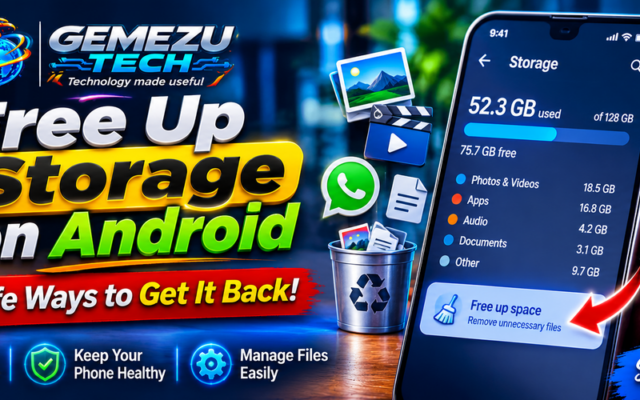
This is the fix that helps most phones. Google says a phone can start having problems when less than 10% of its storage is free.
Check your storage: open Settings and tap Storage. On Samsung phones it is usually under Settings > Battery and device care > Storage.
Here is what 10% means in practice:
- 32GB phone: keep at least about 3GB free
- 64GB phone: keep at least about 6GB free
- 128GB phone: keep at least about 13GB free
More free space is better. Tap each category (Images, Videos, Apps, Audio, Documents) to see what is using the space. On many phones, photos, videos and WhatsApp files are the biggest users.
Ways to free up space
- Back up and delete photos and videos. Make sure they are backed up to Google Photos or copied to a computer first, then delete the copies on the phone. Videos take far more space than photos.
- Use Files by Google. It is a free app from Google. Its Clean tab suggests junk files, large files, duplicates and apps you rarely use, and you choose what to delete.
- Clean up WhatsApp. Open WhatsApp, go to Settings > Storage and data > Manage storage, and review large files and items that have been forwarded many times. Delete what you no longer need. Do not use Clear data on WhatsApp, because that can remove chats that are not backed up.
- Empty your Downloads folder. Old documents, installers and videos pile up there.
- Remove offline downloads you no longer use in apps such as YouTube, music apps and Google Maps.
- Try the built-in tool. On many phones you can open Settings > Storage and tap Free up space to see backed-up photos and unused apps that you can remove.
Warning: Do not delete folders you do not recognise, especially folders named Android. Apps store important files there.
Step 3: Remove apps you do not use
Every app takes storage, many keep running in the background, and many update themselves using your data. Fewer apps usually means a faster phone.
To find apps to remove:
- Open the Google Play Store and tap your profile picture.
- Tap Manage apps & device, then Manage.
- Sort by Size or Least used and look at the list.
To uninstall an app: press and hold its icon, then tap App info or Uninstall.
If an app came with the phone and cannot be uninstalled, tap Disable on its App info page. Only disable apps you recognise and know you do not need, such as extra games, shopping apps or a second browser. Never disable system apps you do not understand.
Tip: If your phone has 2GB or 3GB of RAM, look for the Lite or Go version of heavy apps in the Play Store. They are built to use less memory.
Step 4: Clear app cache the right way
A cache is a set of temporary files an app keeps so that it can open faster next time. Over time these files grow large. Clearing the cache removes temporary data only, so it does not delete your photos, chats or logins. Google notes that an app may be a little slower the first time you open it afterwards.
- Open Settings > Apps.
- Tap an app. Start with the ones that store a lot of data, such as Chrome, Facebook, Instagram, TikTok and YouTube.
- Tap Storage (or Storage & cache).
- Tap Clear cache.
Warning: Tap Clear cache, not Clear storage or Clear data. Clear data permanently deletes everything the app has saved on your phone, including logins and sometimes your content.
Some phones also have a built-in care tool from the manufacturer, such as Samsung’s Device care. These are generally fine for clearing junk files, but you do not need to run them every day.
Step 5: Update your apps and Android
Updates fix bugs and security problems, and some fix slowness. Because updates can be large, use Wi-Fi if you can.
Update your apps: open the Play Store, tap your profile picture, tap Manage apps & device, then tap Updates available and update the apps.
Update Android: open Settings, then tap System > Software update. On Samsung phones, open Settings > Software update. Follow the steps shown.
Two things to know:
- If the phone feels slow right after a big update, restart it and try again after a day. It can spend some time reorganising apps after an update.
- If your phone no longer gets updates, keep your apps updated and be extra careful about what you install.
Step 6: Limit apps that run in the background
Apps that keep running when you are not using them use memory and battery. You can see which ones are the heaviest and limit them.
- Open Settings > Battery and look for Battery usage (or App battery usage). This shows which apps use the most.
- Tap an app you rarely use, open its Battery setting, and choose Optimised or Restricted if the option is there.
Some brands, including some Xiaomi, Tecno and Infinix phones, also have an Autostart or Startup manager setting that controls which apps can start by themselves. Turn it off for apps you do not need.
Warning: Do not restrict apps you rely on for messages, such as WhatsApp or your bank’s app, or you may miss notifications.
Step 7: Reduce animations
This does not make the hardware faster, but it makes the phone feel quicker because menus and apps open with less delay. It is safe and easy to undo.
First, turn on Developer options:
- Open Settings > About phone.
- Tap Build number seven times. (On Samsung phones, go to About phone > Software information first.)
- Enter your PIN or pattern if asked. You will see a message that you are now a developer.
Then change the animation speed:
- Go back to Settings and open Developer options. It is usually under System, or at the bottom of Settings.
- Scroll to Window animation scale, Transition animation scale and Animator duration scale.
- Set each one to 0.5x, or to Animation off if you want the fastest feel.
To go back, set all three to 1x.
Warning: Do not change other settings in Developer options unless you know exactly what they do.
Step 8: Simplify your home screen
Live wallpapers and many widgets keep using memory and battery all day.
- Use a normal still picture as your wallpaper.
- Remove widgets you do not use, especially ones that refresh often, such as weather and news.
- Keep only the apps you use daily on the home screen.
Step 9: Check for unwanted apps and pop-up ads
Sometimes a phone is slow because of an app that should not be there. Watch for these signs: pop-up ads when you are not in a browser, apps you do not remember installing, web pages that jump to other sites, or a phone that gets hot for no reason.
- Scan with Google Play Protect. Open the Play Store, tap your profile picture, tap Play Protect, then tap Scan.
- Uninstall apps you do not recognise and apps you installed from outside the Play Store that you do not need.
- Stop spam notifications from websites. In Chrome, tap the three dots, then Settings > Notifications, and turn off sites you do not trust.
- Block risky installs. Open Settings > Apps > Special app access > Install unknown apps and turn it off for your browser and other apps.
Avoid downloading modified or cracked apps from random websites. They are a common way for unwanted software to get onto phones.
Step 10: Keep your phone cool and check the battery
Phones slow themselves down when they get too hot. To avoid this:
- Keep the phone out of direct sunlight and away from hot places such as a car dashboard.
- Avoid heavy use, such as games and long video calls, while the phone is charging.
- Take off a thick case if the phone feels hot while charging.
On some phones, a badly worn battery can also cause lag and sudden shutdowns. If your phone is a few years old and the battery drains very quickly, a battery replacement at a reputable repair shop may help. Ask for a battery that matches your phone model.
If it is still slow: Safe Mode and factory reset
Try Safe Mode first
Safe Mode switches off the apps you installed and runs only the apps that came with the phone. If the phone is fast in Safe Mode, an app you installed is causing the problem.
- Press and hold the power button.
- Press and hold Power off until you see Safe mode, then tap OK.
- Use the phone for a while. If it is fast, restart normally and remove apps you installed recently, one by one, until the problem stops.
The buttons to enter Safe Mode differ by brand, so check your phone maker’s instructions if this does not work.
Factory reset is the last resort
A factory reset erases everything on the phone. It can remove software problems, but it cannot make an old phone perform like a new one, so only do it when everything else has failed.
Before you reset:
- Back up your photos and videos, contacts and important files.
- Back up your WhatsApp chats (WhatsApp > Settings > Chats > Chat backup).
- Make sure you know your Google account email and password. After a reset, your phone will ask for them, and you will not be able to use the phone without them.
To reset: open Settings > System > Reset options > Erase all data (factory reset). On Samsung phones, open Settings > General management > Reset > Factory data reset.
After the reset, install only the apps you need. If you restore everything from an old backup, you may bring the problem apps back.
What about cleaner and booster apps?
You will see many apps that promise to clean your phone and boost its speed. We recommend you skip them. The steps in Google’s own guide to a slow phone are restarting, updating, freeing storage and checking apps, not installing a cleaner. Here is why these apps usually do not help:
- Android already manages memory by itself. When a booster closes apps, they often restart a few seconds later and use even more power.
- Many of them show a lot of ads, which can slow your phone further.
- Some ask for permissions they do not need, which is a privacy risk, and a few are harmful.
The tools already on your phone, and Files by Google, do the useful part of the job for free.
When it is time to replace the phone
Sometimes software fixes are not enough. It may be time to replace the phone if:
- it no longer gets updates and apps you need no longer work on it;
- it has very little storage, such as 16GB, or only 1GB to 2GB of RAM;
- it is still slow after you have tried every step above and replaced the battery.
As a rough guide, a phone with 4GB of RAM or more and 64GB of storage or more is a comfortable choice for most people today.
A simple weekly routine
- Restart your phone once a week.
- Check that more than 10% of your storage is free.
- Delete junk from your Downloads folder and WhatsApp files once a month.
- Update your apps on Wi-Fi.
- Uninstall any app you have not opened in a month.
Frequently asked questions
Does clearing the cache delete my photos or chats?
No. Clearing an app’s cache removes temporary files only. Clear storage or Clear data is different, because it deletes everything the app saved on your phone.
Why is my phone slow when I still have free storage?
Storage is only one cause. Limited memory (RAM), heavy background apps, heat, an old battery or an unwanted app can slow a phone too.
Is it safe to use Developer options?
Changing the three animation scales is safe, and you can undo it. Leave the other Developer options alone.
How much free storage should I keep?
Google says problems can start when less than 10% is free. More free space is better.
Will a factory reset make my phone like new?
It can remove software problems, but it cannot reverse the age of the hardware, so you may not get the performance of a new phone.
Should I root my phone to make it faster?
No. Rooting can void your warranty, can stop some banking and payment apps from working, and weakens your phone’s security.
Final thoughts
Most slow Android phones need simple care, not a new phone or another app. Start with a restart and your storage, then work down the list, and restart and test after each step so you know what worked. If you take five minutes a week for the routine above, your phone will stay faster for much longer.
Have a question about your phone? Tell us your phone model and Android version in the comments.