
If your data bundle finishes in days and you are not sure why, you are not alone. Many apps use mobile data in the background, even when you are not using them. They refresh feeds, back up photos, download updates and play videos on their own.
In this article
- The quick answer
- First: find the apps using the most data
- Step 1: Turn on Data Saver
- Step 2: Restrict background data for individual apps
- Step 3: Update apps only on Wi-Fi
- Step 4: Stop WhatsApp from downloading media
- Step 5: Stop videos from playing automatically
- Step 6: Back up photos only on Wi-Fi
- Step 7: Lower streaming quality and download over Wi-Fi
- Step 8: Turn off auto-sync for accounts you do not need
- Step 9: Turn off mobile data when you do not need it
- Step 10: Set a data warning and limit
- Use Lite apps
- Check that it worked
- Frequently asked questions
- Final thoughts
This guide shows 10 settings that stop apps from using your data without your permission. They work on Tecno, Infinix, itel, Samsung, Xiaomi, Oppo, Vivo, Nokia, Motorola and Pixel phones running Android 10 to 15. Menu names differ between brands, so use the search box in Settings if you cannot find an option.
The quick answer
The settings that save the most data for most people are:
- Turn on Data Saver.
- Set the Play Store to update apps only on Wi-Fi.
- Stop WhatsApp and social apps from downloading media and playing videos on mobile data.
- Back up photos only on Wi-Fi.
- Turn off mobile data when you do not need it.
First: find the apps using the most data
You will do better if you know which apps are the problem. Open Settings > Network & internet, tap SIMs (or Internet), choose your SIM and tap App data usage. On Samsung phones, open Settings > Connections > Data usage > Mobile data usage. Our guide on finding data-hungry apps explains this step by step.
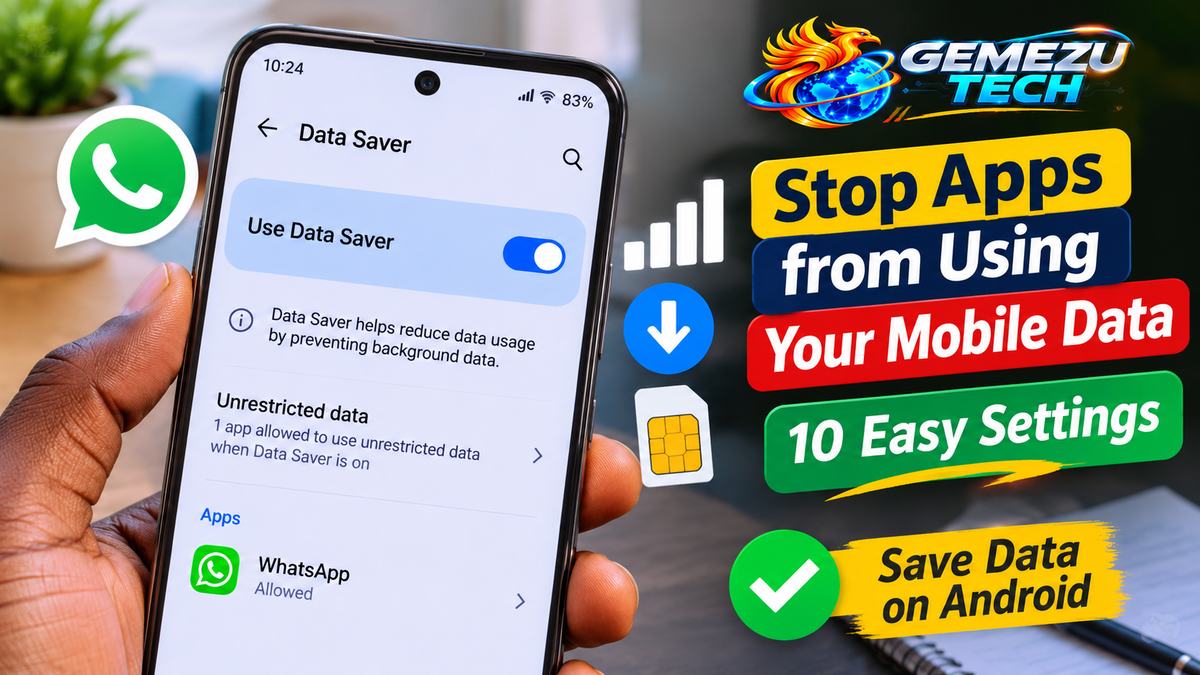
Step 1: Turn on Data Saver
Data Saver stops most apps from using mobile data in the background.
- Open Settings > Network & internet.
- Tap Data Saver.
- Turn it on.
On Samsung phones, look for Data saver under Settings > Connections > Data usage.
With Data Saver on, apps may not refresh until you open them. If an app you need, such as your bank app or WhatsApp, stops working properly, tap Unrestricted data inside the Data Saver screen and allow that app.
Step 2: Restrict background data for individual apps
You can stop a single app from using mobile data when it is in the background.
- Open Settings > Apps and tap the app.
- Tap Mobile data & Wi-Fi (on some phones: Data usage).
- Turn off Background data.
The app will only use data while you are using it. This is a good setting for social media, games and shopping apps. Leave messaging and banking apps unrestricted so you still get notifications.
Step 3: Update apps only on Wi-Fi
App updates can be large, and the Play Store may download them on mobile data.
- Open the Play Store and tap your profile picture.
- Tap Settings > Network preferences.
- Tap Auto-update apps and choose Over Wi-Fi only.
- Tap App download preference and choose Over Wi-Fi only, or Ask me every time.
Do the same for Android system updates. Under Settings > System > Software update, choose to download updates over Wi-Fi only.
Step 4: Stop WhatsApp from downloading media
WhatsApp can download every photo, video and file in every chat, including groups you rarely read.
- Open WhatsApp and go to Settings > Storage and data.
- Under Media auto-download, tap When using mobile data and untick everything (or keep only Photos).
- Tap When connected on Wi-Fi and choose what to download on Wi-Fi.
- Turn on Use less data for calls to reduce data used during voice and video calls.
You can still tap a photo or video to download it when you want it. This one setting can save a large amount of data if you are in busy groups.
Step 5: Stop videos from playing automatically
Videos that start playing as you scroll use a lot of data.
- Facebook: open Settings & privacy > Settings > Media (the name may vary) and set video autoplay to On Wi-Fi only or Never.
- Instagram and TikTok: look for a Data saver or Use less data option in their settings.
- YouTube: open Settings > Data saving (or Video quality preferences) and choose Data saver or a lower quality on mobile networks.
Menu names change as apps update, so look for words like autoplay, data saver and video quality.
Step 6: Back up photos only on Wi-Fi
Google Photos can use a lot of data when it uploads your photos and videos.
- Open Google Photos, tap your profile picture and open Photos settings > Backup.
- Look for Mobile data usage and choose No usage (or leave it off).
Do the same for any other cloud backup app you use.
Step 7: Lower streaming quality and download over Wi-Fi
Streaming video and music at high quality uses far more data.
- Lower the video quality to 360p or 480p when you are on mobile data.
- Download the videos and music you want while on Wi-Fi, then watch or listen offline.
Step 8: Turn off auto-sync for accounts you do not need
Your accounts sync email, contacts and calendars in the background.
- Open Settings > Passwords & accounts (or Accounts).
- Tap an account and turn off the sync for items you do not need, such as Calendar or Contacts for old accounts.
Step 9: Turn off mobile data when you do not need it
If you are on Wi-Fi or you will not be using the internet, switch off mobile data. Swipe down from the top of the screen and tap the Mobile data tile.
Some phones have a setting such as Switch to mobile data or Adaptive connectivity that moves you to mobile data when Wi-Fi is weak. Under Settings > Network & internet or Settings > Connections > Wi-Fi, you can turn it off if you want to stay on Wi-Fi.
Step 10: Set a data warning and limit
A warning tells you when you have used a set amount, and a limit can switch mobile data off for you.
- Open Settings > Network & internet > SIMs and choose your SIM.
- Tap Data warning & limit.
- Set a warning, and a limit if you want.
Warning: A data limit switches your mobile data off when you reach it. Set it a little below your bundle size, and remember that your phone’s count can differ from your network’s count.
Use Lite apps
Many popular apps have a Lite version in the Play Store that uses less data and storage. If your phone has little memory or you have limited data, look for the Lite version of the apps you use most.
Check that it worked
After a few days, open App data usage again. The apps that were using the most data should have dropped. If one app is still using too much, restrict its background data or uninstall it.
Frequently asked questions
Does Data Saver stop WhatsApp messages?
It can delay them if WhatsApp is restricted. Allow WhatsApp under Unrestricted data if you want messages to arrive without opening the app.
Why does my data finish even when I am not using the phone?
Apps update, sync and back up in the background. Turn on Data Saver and check App data usage to find the culprits.
Does Wi-Fi use my mobile data?
No. When the phone is connected to Wi-Fi, apps use Wi-Fi, not your bundle. Check that Wi-Fi is really connected, because some phones switch back to mobile data when Wi-Fi is weak.
Do data bundles expire if I save data?
That depends on the plan. Check the validity of your bundle with your network, because unused data can expire.
Final thoughts
Start with Data Saver, Wi-Fi-only updates, and WhatsApp media. Those three changes save the most data for most people. Then check your App data usage once a week, so a new data-hungry app does not catch you out.